Installation of Dzongkha on Android 4.x (Jelly Bean) and above
The PDF version of the manual is downloadable from the end of this instruction page.
The DDC is working to get Dzongkha support included in the Android operating system. Until then you can root the phone (Samsung phones are not required to root any more) and install Dzongkha font and keyboard on Android Jelly Bean. (4.x)and above. Earlier versions of Android will not render Dzongkha text correctly (letters will overlap).
I. Rooting Android Phone (Not required for Samsung Phones, skip the step)
To install Dzongkha on your Android phone you require root access. If your Android 4.x phone is not already “rooted” follow the steps below.
Download and Install “Kingo Android Root”
Kingo Android Root is a utility which should enable you to root your Android phone.
Make sure your PC has access to internet.
Download “Kingo Android Root” on your computer from here.
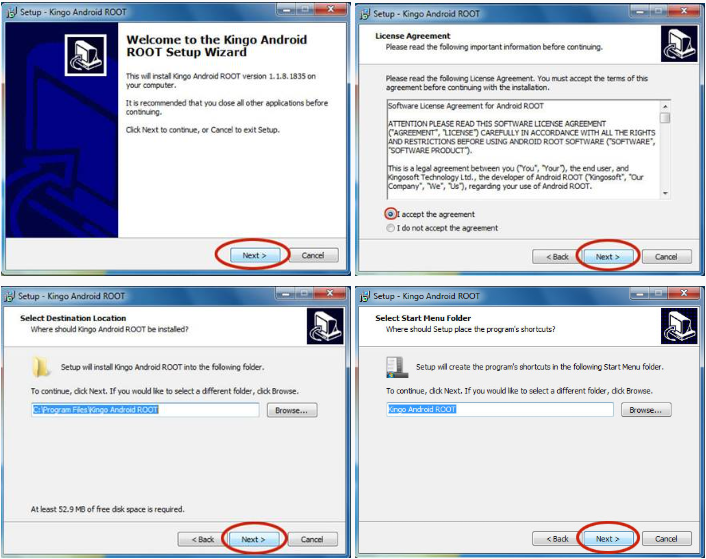
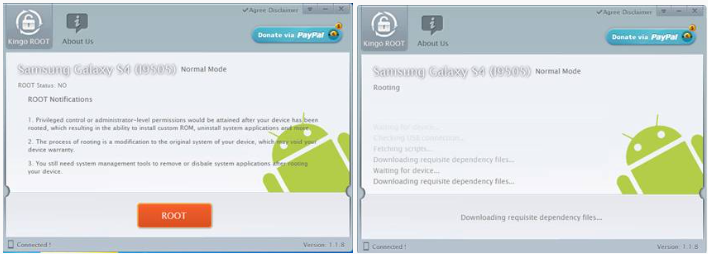
Run the downloaded file, follow the instructions illustrated in the screenshots below to install the software on your computer.
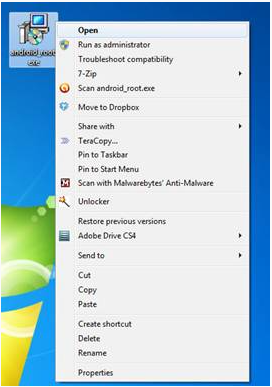
Right click and open the file
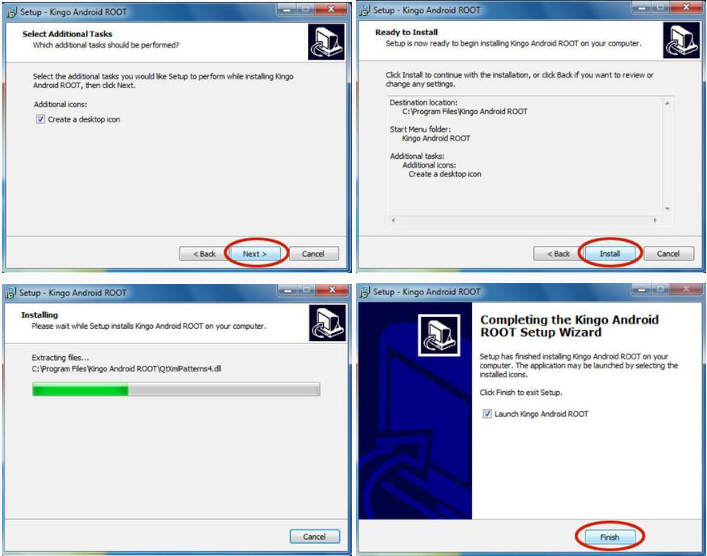
Follow the successive steps illustrated in the screenshots to install “Kingo Android Root”.
Click on “Finish” once the installation is complete.
You have now successfully installed “Kingo Android Root” on your computer.
Connecting the Phone to the Computer
Connect your phone to the computer, enable USB debugging mode on your phone from “Settings”. Enabling USB Debugging mode differs from one Android version to another.
You should also have the mobile synchronizing PC suite from your phone manufacturer installed on your computer to synchronize between the phone and the computer. The PC suite also differs from one mobile brand to another. (Example: for Samsung, use Samsung Kies).
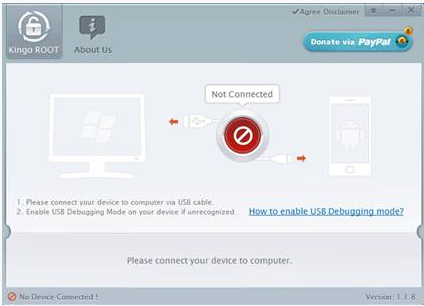
Now, open the “Kingo Android Root” shortcut icon created on your computer Desktop.
Connect the phone to your computer via USB cable that comes along with the phone.
5. “The Kingo Android Root” will automatically detect and recognize the phone.
6. Then click on “ROOT” and the rooting procedure will start. It may take several minutes to complete the procedure, depending upon the speed of your connection.
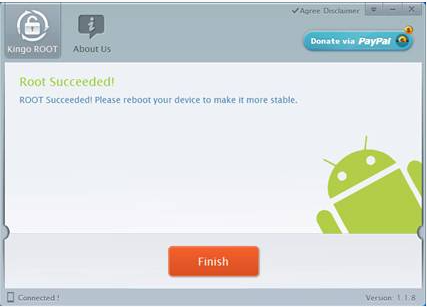
7. Once the rooting procedure is completed, select “FINISH”. Your phone will automatically reboot.
8. You can now close the “Kingo Android Root” application and unplug the USB cable to disconnect the phone from the computer.
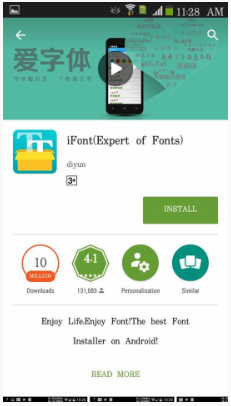
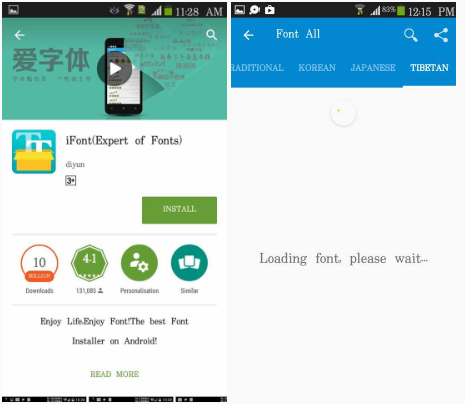
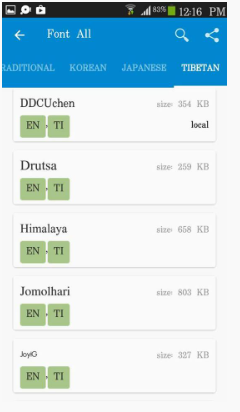
Scroll and look for TI and Click on it to load a list of fonts supporting Tibetan script.
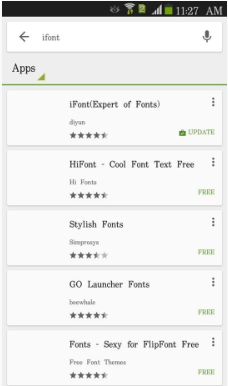
Opening iFont for the first time will display a dialogue showing the version number. Simply close this.
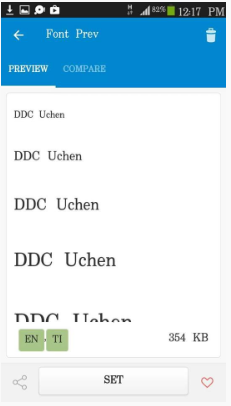
Click on one of the desired Tibetan font like DDCUchen, Jomolhari, Joyig etc and clik on it.
Click on “Download”to download the font and after loading, click on “set”.
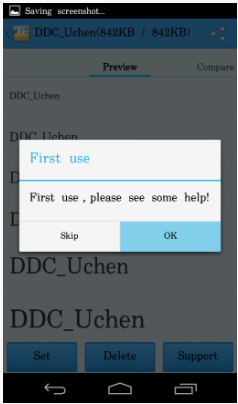
The first time you use the application, you will be asked if you want help. You can skip this.
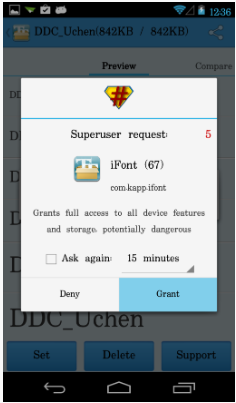
If Superuser request appears as shown below, click on “Grant” to allow full access to all device features.
Note: If your phone is not rooted, you may not have the access to set the Dzongkha font.
You can change the font style and font size by going to Settings->display-> font style or font size.
Installing a Dzongkha Keyboard
Install MultiLing O Keyboard App
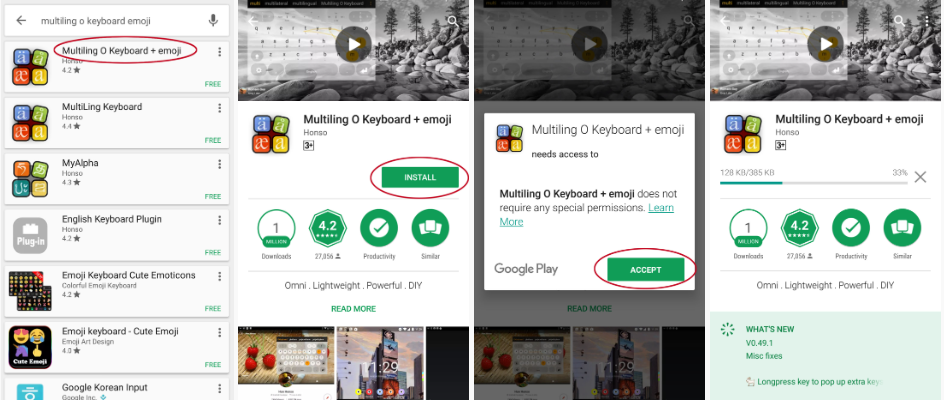
Open “Play Store” from your phone, search for “Multiling O Keyboard” and then install it.
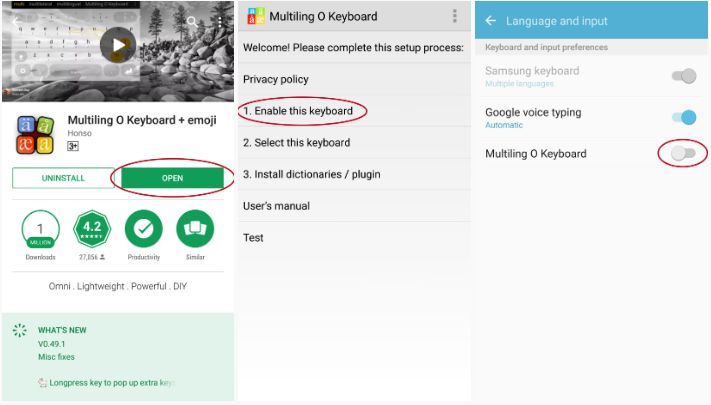
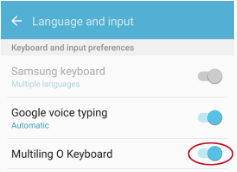
2. After the installation is complete, open the App ► Enable this keyboard ► Enable Multiling O Keyboard ► OK
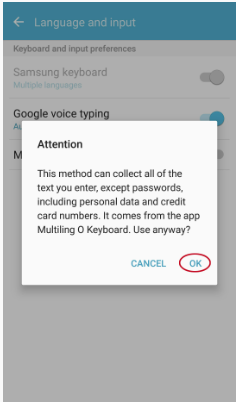
3. An attention message will pop up for confirmation. Click OK to enable the keyboard.
4. Now you will see that the “Multiling O Keyboard” is enabled.
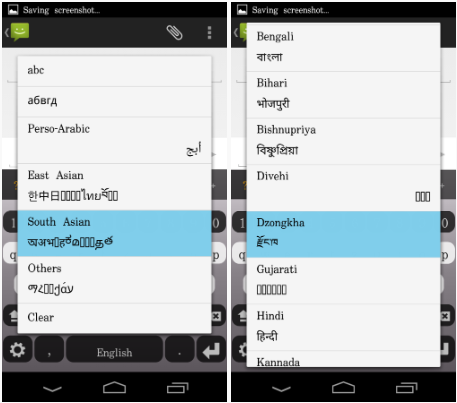
5. Select South Asian ► Dzongkha (རྫོང་ཁ).
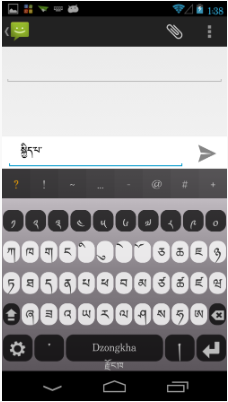
6. Your keyboard has now been changed to Dzongkha and the Dzongkha font is selected
Using Dzongkha Keyboard
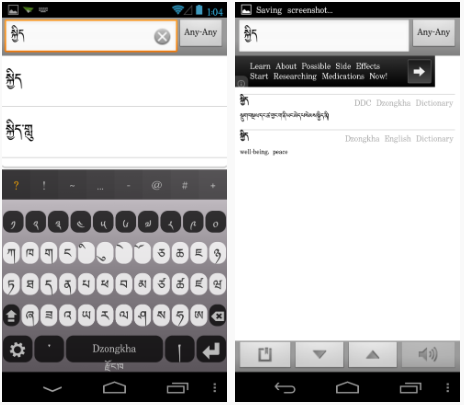
You can now send & receive messages/SMS and browse in Dzongkha.
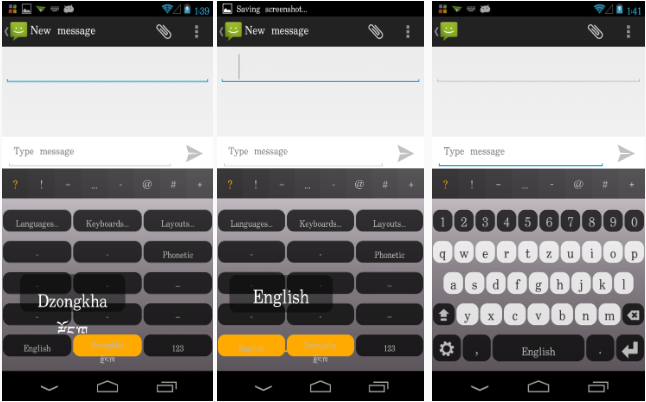
To to switch the keyboard back to English, hold on to “Dzongkha” and then drag it to “English”
Installing Dzongkha Dictionaries on Android
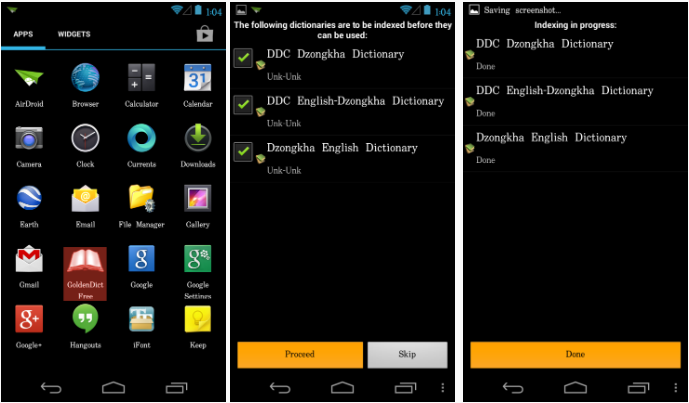
Download and Install GoldenDict
Download and install “GoldenDict Free” on your phone from “Play Store”
Dowload, Copy and Install Dictionary Files
Download stardict files from HERE (Dzongkha-Dzongkha, Dzongkha-English & English-Dzongkha)
Copy these dictionary files from “Download” folder to your SD card, in the “GoldenDict” folder Note: Do not copy and paste stardict folders. Copy the files inside the folder (.dict, .idx and .ifo) in the GoldenDict folder.
Now open GoldenDict Free ► Proceed ► Done (After the indexing is complete)