Creating WordPress website in Dzongkha (updated on 3rd Nov, 2017)
The PDF version of the manual is downloadable from the end of this instruction page.
With Dzongkha Language pack for WordPress published, it is now easy to have Dzongkha monolingual or bilingual (Dzongkha and English) WordPress website. This is the updated instruction on how to create Dzongkha English bilingual WordPress website. You can check our older version of instruction by clicking here: Instructions for creating WordPress website in Dzongkha.
a) Adding Dzongkha Language Package
For Dzongkha monolingual website, set the Dzongkha as the default language by going to Setting->General-> Site Language and choose རྫོང་ཁ from the list and save the changes. However, if you are creating Dzongkha and English bilingual website, you will have to set it using multilingual plugin which is discussed below.
b) Using Polylang multi-language plugin for bilingual websites
The better and easier way of having WordPress website in multiple languages could be using multi-language plugins. A multi-language plugin will provide you with a means to reproduce your content in another language or languages. This could be done post by post – meaning you would manage it manually – or you could go so far as to reproduce your entire site in the target language. Some plugins even offer automatic translation, although the quality of the translation is questionable at this point of time. However, automatic translation to Dzongkha is not provided by any of the plugins.
Amongst others, Polylang is free, easy to use and useful multi-language plugins. With this plugin, we can translate posts and pages, the site title and the description, the widget titles and also the menus.
i) Installation and Activation of Polylang plugin
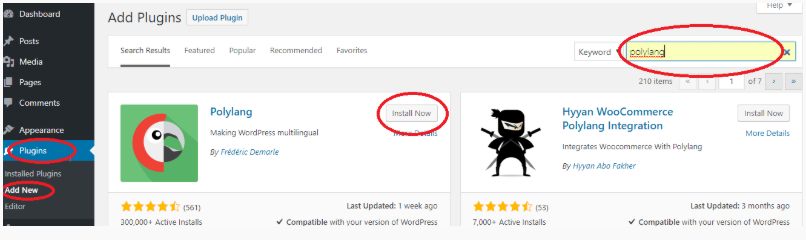
If you tried another multilingual plug-in, deactivate them before activating Polylang. Go to Plugins->Add new and search for “polylang”. Install and activate the plugin.
ii) Adding content Language
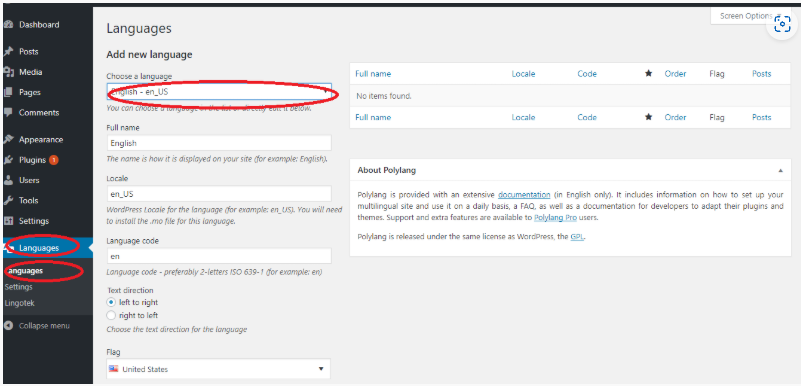
Go to the languages settings page and first add English as one of the content languages.
Once English language is added, it is very likely that you get following notification:
“There are posts, pages, categories or tags without language. You can set them all to the default language.” Please click on “You can set them all to the default language”. By doing so, all your existing post in English will be assigned English language.
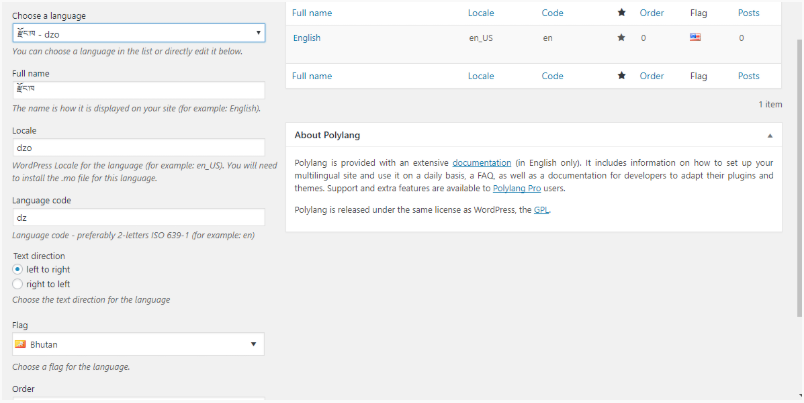
Now similarly, add Dzongkha as a content language. Dzongkha now is in the predefined list.
iii) String Translation
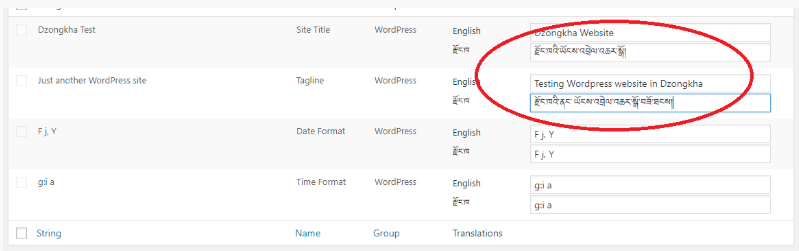
Once you have added content languages, you can translate the website title, the description by going to Language -> String Translation.
iv) Adding the language switcher widget
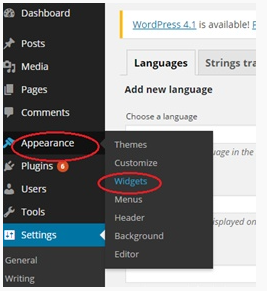
Add the ‘language switcher’ widget to let your visitors switch the language.
v) Adding menus
You can add menus both in Dzongkha and English by going to Appearance->Menus.
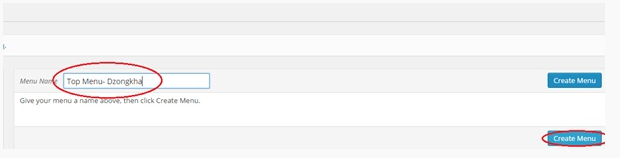
Give a name to the menu and click on create menu.
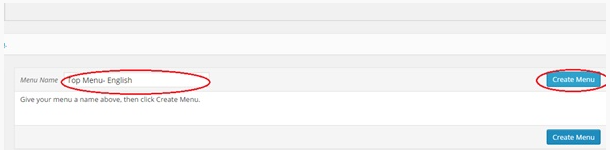
Create another similar menu for English.
Add pages, links and categories to the menu by choosing the menu to edit and checking the check boxes for pages, categories etc. you want to add. Then click on Add to Menu.
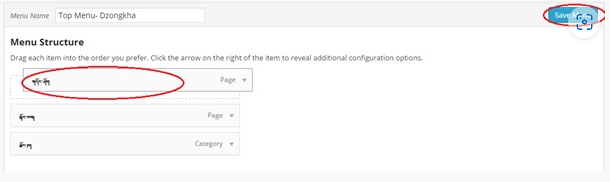
Reorder the menu items by dragging and dropping under the Menu Structure Section and click on Save Menu.
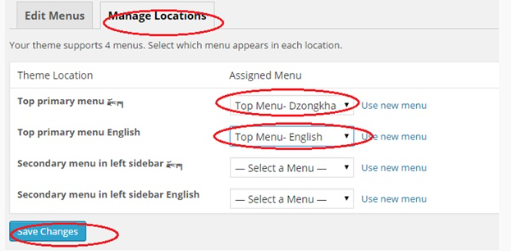
Manage the locations of the menu by clicking on Manage Locations tab and assigning a menu against the Theme Location. Click on Save Changes.
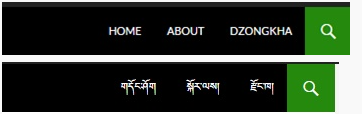
Menus, now will be available both in English and Dzongkha
vi) Creating Pages
You can create pages in English and its translation in Dzongkha or vice versa.
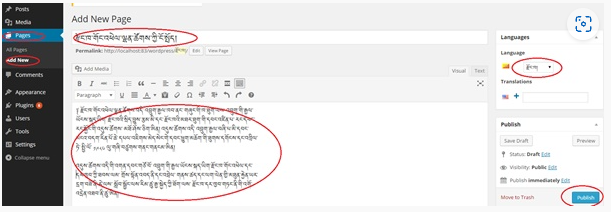
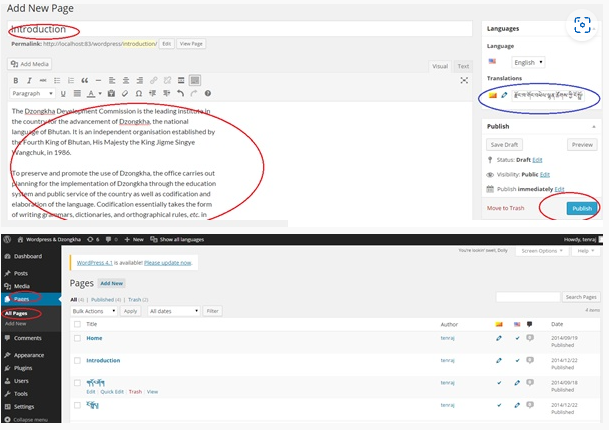
Create a new page by clicking on Pages-> Add new. Choose the language in which you want your page to be. Enter the page title and the content.
To add an English version of the page and have it automatically linked, click on blue ‘+’ button under the Translations of the Languages section in the right side of the page.
Enter the Title and Content for the page and Click on Publish button. (You will notice that the Dzongkha version of the page is already linked to the English version as indicated in the picture).
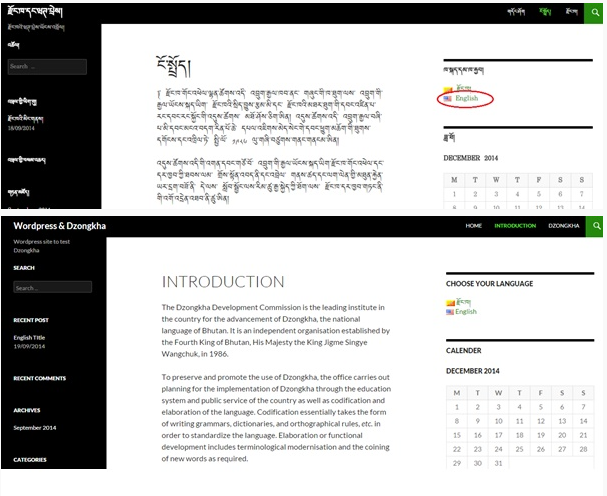
The page now will be available both in English and Dzongkha and you can switch between the two by clicking on the links of the language switcher widgets.
vii) Creating posts, categories and Tags
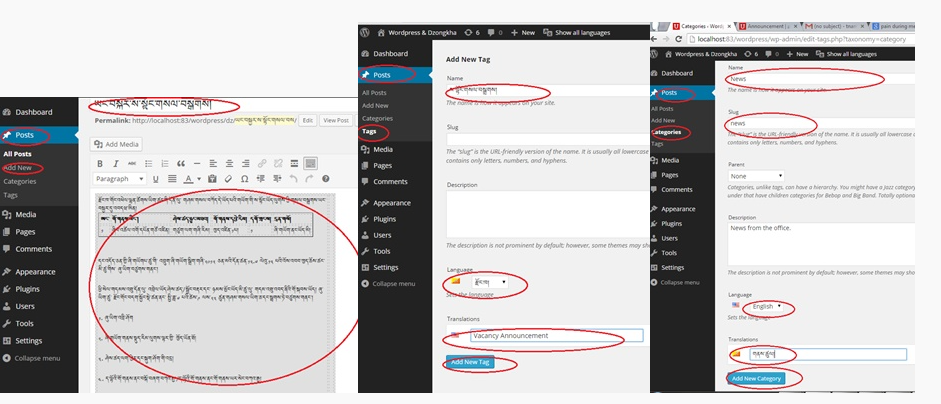
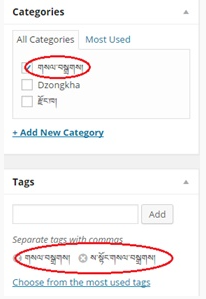
Creating a post is as same as creating pages. You can create posts both in English and Dzongkha as we can do for pages. Unlike for pages, we can add categories and tags for posts.
You can also create categories and tags in English or Dzongkha and its translation.
c) Creating CSS file for Dzongkha
Create a css file in the active theme’s folder and name it dzo.css. An important property to keep in mind is the font-family. It is important that we use the Dzongkha fonts for the proper display of Dzongkha. How to embed and use Dzongkha font is described below.
For the proper display for Dzongkha, it is important that we use Dzongkha fonts. Not all the devices used to access internet may have the Dzongkha fonts installed. However, CSS3 Web Fonts allows Web designers to use fonts that are not installed on the user’s computer. You can just include the desired font file on your web server, and it will be automatically downloaded to the user’s computers when needed. Your “own” fonts are defined within the CSS3 @font-face rule. For detailed information on CSS3 @font-face rule, visit http://www.w3schools.com/css/css3_fonts.asp.
We have used CSS3@font-face rule on our website allowing our website to be viewed properly even from the devices having no Dzongkha fonts installed. For the WordPress site in Dzongkha, upload the Dzongkha web fonts in your theme’s folder.Currently, we have DDC_Uchen font and Dzongkha_calligraphic font in True Type file format and Embedded OpenType file format with which it will be enough to display Dzongkha properly in any browsers. Click here to download the Dzongkha Web Fonts. Dzongkha calligraphic font is a preferred web font.
. You may use the following CSS codes embedding Dzongkha font.
Note: in above code, fonts are supposed to be in the folder named fonts in the same directory as the css file. Though, the TrueType Font file is supported by all the web browsers, Embedded Opentype Font file is still used for the older versions of IE which some users with Windows XP still uses it. In your CSS file, you can assign the value “dzongkha” to the font-family property of the desired selectors as follows:
* { font-family:dzongkha !important; }
d) Adding Dzongkha css file
You will have to use the appropriate css file for the Dzongkha and English language and it can be done by editing wordpress’s header.php file. Use wordpress get_locale() function to know the current locale and switch the css file accordingly as shown in the following code. The idea is to use the dzo.css file when locale dzo is selected (for Dzongkha pages). In the header.php file of the theme in use, paste the following code exactly before closing head tag.